Table of Contents
🔥 Quick Summary (Key Takeaways)
- Canva AI lets you design using simple text prompts
- You can create images, videos, and full campaigns instantly
- Best for beginners, creators, marketers, and bloggers
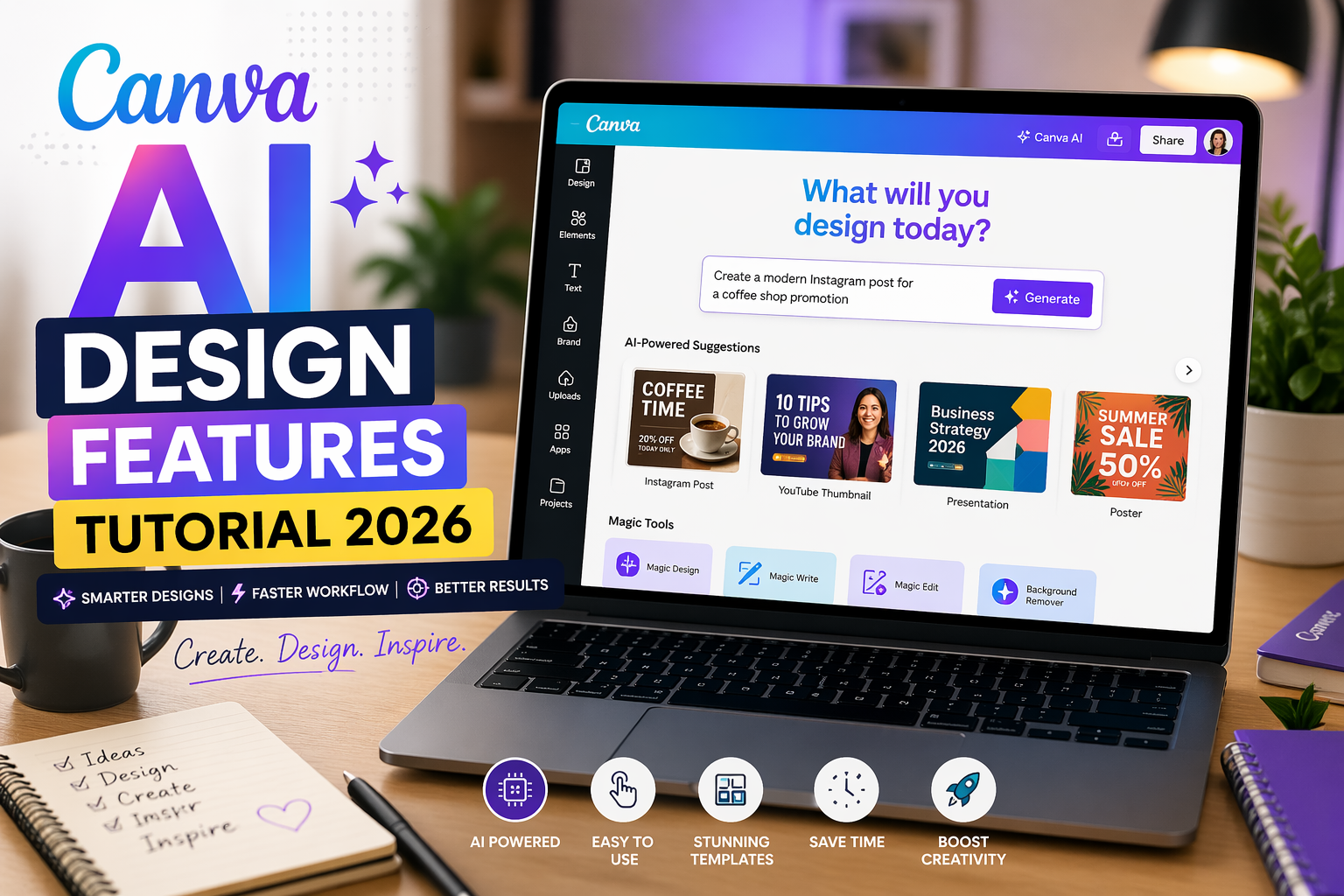
Canva AI Design Features Tutorial 2026 (Complete Guide)
Canva AI has evolved massively in 2026.Canva AI Design Features Tutorial 2026 (Step-by-Step)
Instead of starting with templates, you now start with an idea—and Canva builds the design for you.
According to official updates, Canva AI 2.0 can generate fully editable designs from a single prompt, including layouts, images, and branding .
Even more impressive? It remembers your style over time.
Top Tools in Canva AI Design Features Tutorial 2026
Let’s break down the most powerful features you’ll actually use.Canva AI design features tutorial 2026
1. Magic Design (Instant Layout Generator)
This is the feature most beginners fall in love with.
👉 You type something like:
“Instagram post for fitness motivation”
Boom—Canva generates multiple ready-to-use designs.
Why it’s powerful:
- No design skills needed
- Multiple layout options instantly
- Perfect for social media posts
2. AI Prompt-Based Design (Game Changer)
This is where Canva 2026 really stands out.
Instead of clicking tools, you just talk to Canva AI.
Example prompt:
“Create a YouTube thumbnail for a tech review channel”
And it builds everything.
This conversational design approach allows users to go from idea to finished content faster than ever .
3. Magic Write (AI Content Generator)
Struggling with captions or blog ideas? This helps.
Use it to:
- Generate social captions
- Write blog outlines
- Create ad copy
Honestly, I use this when I’m stuck. It’s like having a mini content writer inside Canva.
4. AI Image Generator & Editor
You can now create images from scratch using prompts.
Example:
“Minimalist office workspace with laptop and plants”
You can also:
- Remove backgrounds
- Expand images
- Replace objects
Everything happens inside Canva—no need for external tools.
5. Magic Resize (Huge Time Saver)
This feature alone can save hours.
Turn one design into:
- Instagram post
- YouTube thumbnail
- Pinterest pin
All in one click.
Many users say this is one of the biggest time-saving features in Canva workflows.
6. Brand Kit + AI Branding
Consistency matters.
Canva AI automatically applies:
- Your brand colors
- Fonts
- Logo style
So every design stays on-brand without extra effort.
7. Canva AI 2.0 (Latest Update)
This is the newest upgrade—and honestly, it’s a big deal.
Recent reports show Canva AI can now:
- Create full marketing campaigns
- Generate multi-platform content
- Automate workflows with integrations
It even includes:
- Memory-based personalization
- Real-time collaboration
- Smart automation tools
Step-by-Step Canva AI Design Features Tutorial 2026
Let’s keep this simple and practical.
Step 1: Open Canva AI
- Go to Canva homepage
- Click “Magic Studio” or AI tools
- Start a new design
Step 2: Enter Your Prompt
Type what you want:
Examples:
- “Instagram post for skincare brand”
- “Business presentation for startup pitch”
Step 3: Choose a Design
Canva generates multiple options.
Pick one and customize:
- Colors
- Text
- Images
Step 4: Edit with AI Tools
Use:
- Magic Write (for text)
- AI image tools
- Layout suggestions
Step 5: Export & Publish
Download your design or share directly.
Done. Seriously, it’s that fast.
Pros and Cons of Canva AI (Honest Review)
✅ Pros
- Beginner-friendly
- Saves time
- All-in-one platform
- No design skills required
❌ Cons
- Some features are Pro-only
- AI results may need tweaking
- Can feel overwhelming at first
In my experience writing about design tools, Canva AI is one of the easiest to start with—but you still need creativity to stand out.
Best Use Cases for Canva AI
You’ll love this if you are:
- Blogger
- YouTuber
- Social media manager
- Student
- Small business owner
Honestly, even if you’re not a designer, this tool makes you feel like one.
FAQs (People Also Ask)
1. Is Canva AI free in 2026?
Yes, but advanced features are part of Canva Pro.
2. Can beginners use Canva AI?
Absolutely. It’s designed for non-designers.
3. What is Magic Design in Canva?
It’s an AI tool that creates layouts instantly from your input.
4. Can Canva AI replace designers?
No. It helps speed up work but doesn’t replace creativity.
5. Is Canva AI worth it in 2026?
Yes—especially for content creators and marketers.
Conclusion
The Canva AI design features tutorial 2026 shows one thing clearly—design is no longer complicated.
You don’t need expensive software.
You don’t need years of experience.
You just need ideas.
Personally, I think Canva AI is perfect for beginners—but even pros can use it to speed up workflows.
👉 Now it’s your turn:
Try Canva AI today and see what you can create.
And hey—if you found this helpful, share it or drop a comment. I’d love to know what you’re building 🚀