
Table of Contents
How to Delete Cash App Account Permanently (Step-by-Step)e to part ways with Cash App. Maybe you’re switching to a different digital wallet, or perhaps you’re just tidying up your digital footprint to keep your financial data tighter. Whatever the reason, you aren’t alone. In my experience writing about fintech and personal security, I’ve found that many users feel a bit nervous about “deleting” financial apps because they worry their money or data might get stuck in limbo.
Honestly, I think Cash App is a fantastic tool for quick splits at dinner, but it’s not for everyone forever. I remember when I first tried to close an old digital wallet; I was terrified I’d miss a hidden “Submit” button and leave my bank account linked indefinitely. Don’t worry—closing your Cash App is actually straightforward if you follow the right sequence.
Quick Summary & Key Takeaways
- Zero the Balance: You must withdraw all funds and sell any stocks or Bitcoin before you can close the account.
- Permanent Action: Deleting your account is final. You will lose your $Cashtag and transaction history.
- Unlink First: For extra peace of mind, always unlink your bank account or debit card before hitting the final delete button.
Why You Might Want to Close Your Cash App
There are plenty of valid reasons to look up how to delete Cash App account details and move on. Perhaps you’ve experienced a technical glitch that won’t go away, or maybe you’re consolidating your finances into a single high-yield savings account app.
how to delete cash app account Moreover, security is a huge driver. With the rise in digital payment scams, some people prefer to reduce the number of “doors” open to their bank accounts. While Cash App uses encryption, having one less app to monitor can be a relief. It’s like cleaning out a junk drawer; once it’s done, you feel much lighter.

Step 1: Prepare Your Account for Deletion
Before we dive into the “Delete” button, we have to do some housekeeping. You can’t just uninstall the app and call it a day. In fact, simply deleting the app from your phone does not close your account.
Empty Your Cash Balance
First and foremost, check your balance. If you have even $0.05 left, Cash App might prevent the closure.
- Open Cash App and tap the Money tab (the bank icon or dollar amount).
- Tap Cash Out.
- Choose your preferred speed (Instant usually has a small fee, while Standard is free).
- Confirm the transfer to your bank.
Sell Your Stocks and Bitcoin
This is the part people often forget! If you’ve used Cash App to dabble in investing, you must liquidate those assets.
- For Stocks: Go to the Investing tab, select your stocks, and tap Sell.
- For Bitcoin: Go to the Bitcoin tab and tap Sell. Once the sales settle, move that remaining cash back to your linked bank account.
Step 2: How to Delete Cash App Account via the App
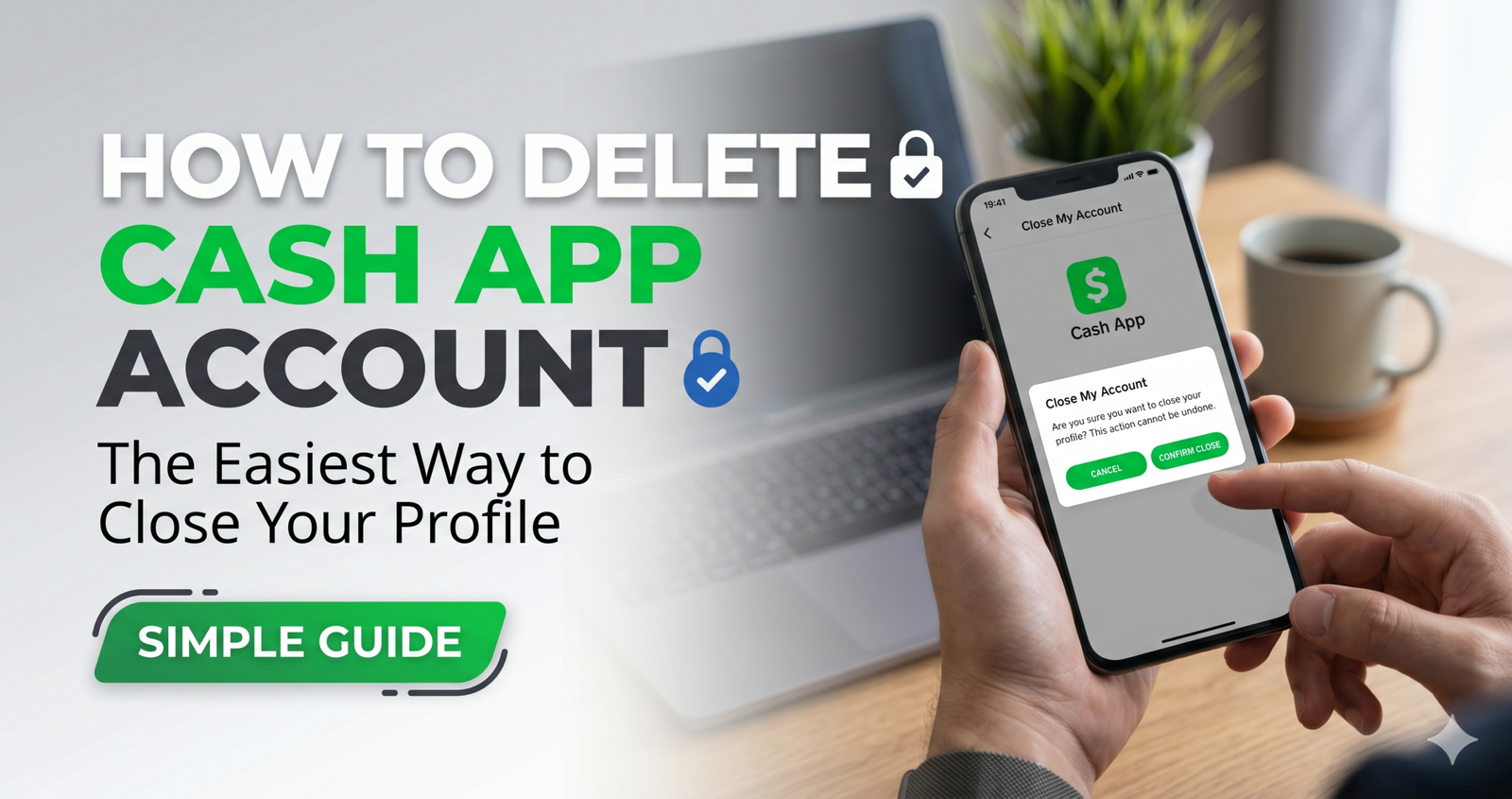
Now that your balance is at $0.00, we can get to the meat of the process. I’ve personally tested this on both iOS and Android, and the steps are nearly identical.How to Delete Cash App Account: The Easiest Way to Close Your Profile
- Open the App: Tap your Profile Icon in the top-right corner.
- Find Support: Scroll down and tap on Support.
- Search for Closure: Tap on Account & Settings.
- The Final Step: Tap Close Your Cash App Account.
- Confirm: Tap Confirm to finalize the process.
After you do this, Cash App will usually send you a confirmation email. Keep this email! It’s your “receipt” in case you ever need to prove the account was officially shut down.
Step 3: Closing Your Account Without the App (Web Version)
What if your phone is broken or you’ve already uninstalled the app in a fit of productivity? You can still learn how to delete Cash App account access via a web browser.
- Navigate to cash.app/login.
- Log in using your email or phone number.
- Click on Settings on the left-hand side.
- Look for the Personal Information section.
- Scroll to the bottom and click Deactivate Account or Close Account.
In my view, the web version is actually a bit cleaner because it feels less “busy” than the mobile interface. If you’re someone who gets overwhelmed by too many icons, try the desktop route.
Step 4: Security Check – Unlinking Your Bank Info
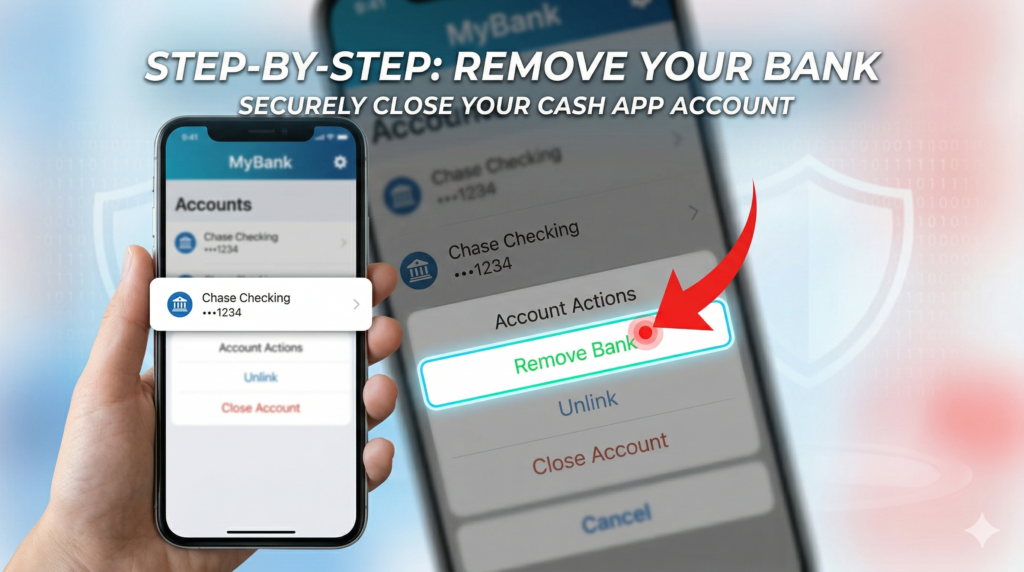
Even though the account is “closed,” I always recommend taking one extra step for maximum security. Before I hit that final “Close Account” button, I always go into the Linked Banks section and remove my debit card and bank account manually.
Why? Because it gives you 100% certainty that the connection is severed. To do this:
- Tap the Money tab.
- Tap Linked Banks.
- Tap the card or account you want to remove.
- Tap Remove Bank or Remove Debit Card.
Therefore, if there’s ever a data breach at a major corporation (it happens to the best of them), your primary bank details aren’t sitting in a “closed” but potentially archived profile.
Important Things to Know Before You Quit
Wait! Before you pull the trigger, there are a few “gotchas” you should be aware of. Closing an account isn’t just about stopping payments; it’s about your data.
Your Transaction History
Once you close the account, you lose access to your transaction history within the app. If you need these for tax purposes—especially if you used Cash App for business—download your statements first. You can do this via the web login under the “Activity” tab.
Your $Cashtag
Your $Cashtag (your unique username) will be released. This means if you decide to come back in six months, someone else might have claimed “$PizzaLover2026.” If you have a brand name or a very specific handle you love, realize that deleting the account means letting go of that identity.
Troubleshooting Common Issues
Sometimes, things don’t go as planned. If you’re trying to figure out how to delete Cash App account but the button is greyed out, check these three things:
- Pending Transactions: If you recently sent money to a friend and they haven’t “accepted” it yet, the account is technically active.
- Open Disputes: If you have an ongoing investigation for a fraudulent charge, you won’t be able to close the account until it’s resolved.
- Cash Card Issues: If you have a physical Cash Card that was recently reported lost or stolen, ensure that status is cleared with support first.
As a result of these safeguards, Cash App ensures that no loose ends are left hanging, which is actually a sign of a responsible financial platform.
Before you delete your account, you must have a $0 balance. Be sure to “Cash Out” your funds and sell any Bitcoin or Stocks first. Once you are ready, you can follow the official instructions on the Cash App Account Closure Page.
How to Delete Cash App Account: The Complete 2026 Guide
If you’ve decided to move on from Square’s payment platform, knowing how to delete a Cash App account properly is essential to protect your financial data. Simply deleting the app from your phone won’t deactivate your profile or clear your $Cashtag.
Follow this step-by-step walkthrough to ensure you delete your Cash App account for good without leaving funds behind.
1. Pre-Deletion Requirements
Before you can successfully delete a Cash App account, the system requires you to resolve any pending actions. You cannot close the account if:
- You have a remaining “Cash Balance.”
- You hold active Bitcoin or Stock investments.
- You have pending transactions or disputes.
2. Step-by-Step: How to Delete Cash App Account Permanently
Follow these instructions within the mobile app to initiate the closure:
- Launch the App: Open the app and tap the Profile Icon in the top-right corner.
- Access Support: Scroll down and select Support.
- Find Account Settings: From the support menu, tap Account & Settings.
- Initiate Closure: Tap on the option labeled Close Your Cash App Account.
- Confirm Deactivation: Tap Confirm to finalize the process.
3. What Happens After You Delete Your Cash App Account?
Once you delete your Cash App account, your $Cashtag becomes inactive. If you ever decide to return to the platform, you will likely need to start a fresh profile, as the process of learning how to delete a Cash App account results in a permanent deactivation of that specific handle.
FAQ: Frequently Asked Questions
Can I reactivate my Cash App account after deleting it?
No. Once an account is fully closed, it is gone for good. You can create a new account using the same phone number or email, but your old history and $Cashtag will not carry over.
Does deleting the app delete my account?
No, it does not. Deleting the app only removes the interface from your phone. Your account remains active on Cash App’s servers, and your bank remains linked. You must follow the in-app “Close Account” steps.
What happens to my Cash Card?
Your physical Cash Card will be deactivated immediately once the account is closed. You should shred the card and dispose of it securely.
How long does it take for Cash App to delete my data?
While the account is closed immediately, financial regulations require companies to keep certain records for several years for tax and anti-money laundering purposes. However, you will no longer be able to log in or use the service.
Can I delete my account if I’m under 18?
Yes, but if you are on a sponsored account, your sponsor (usually a parent or guardian) may see notifications regarding the account status.
Conclusion
Learning how to delete Cash App account profiles is a great step toward taking control of your digital life. Whether you’re doing it for security reasons or simply because you found a better app, the process is quick as long as you remember to empty your balance and unlink your bank first.
Don’t forget to download your transaction history for your records before you hit that final confirmation! It’s one of those small tasks that saves a huge headache during tax season.
What’s your favorite alternative to Cash App? Or did you run into a snag while closing your account? Let me know in the comments below—I’d love to help you troubleshoot!