
The Ultimate Guide to Finding “Lost” Apps
Table of Contents
How to Unhide Apps on iPhone: 5 Easy Ways (iOS 18 Ready)We’ve all been there. You go to tap on Instagram or your banking app, and suddenly… it’s gone. You didn’t delete it, but it’s nowhere to be found on your home screen. Did it vanish into thin air? Thankfully, no. Apple has added several ways to “hide” apps over the years—some on purpose and some by accident.
In my experience writing about iOS troubleshooting for over a decade, I’ve found that most “missing” apps are simply tucked away in the App Library or a hidden folder. Whether you’re using the latest iOS 18 features or an older version, I’ll show you exactly how to unhide apps on iPhone so you can get back to scrolling, posting, or working in seconds.
Quick Summary: Key Takeaways
- iOS 18 Users: Check the “Hidden” folder at the very bottom of your App Library.
- Standard Hiding: Swipe to the App Library, long-press the app, and select “Add to Home Screen.”
- Hidden Pages: Long-press your home screen wallpaper and tap the dots to reveal hidden pages.
1. How to Unhide Apps on iPhone Using the App Library
The most common reason an app “disappears” is that it’s been removed from the Home Screen but kept in the App Library. This was a major change introduced in iOS 14.
I remember when this feature first launched; I spent twenty minutes looking for my Kindle app before realizing I’d accidentally swiped it into the digital void. Here is how you bring it back:
- Swipe left on your Home Screen until you reach the very last page. This is the App Library.
- Use the search bar at the top or browse the category folders to find your app.
- Once you see the app icon, long-press it.
- From the pop-up menu, select Add to Home Screen.
If you don’t see “Add to Home Screen,” it means the app is already on one of your pages—you might just be overlooking it in a folder!
2. Unhiding Apps in the iOS 18 “Hidden” Folder
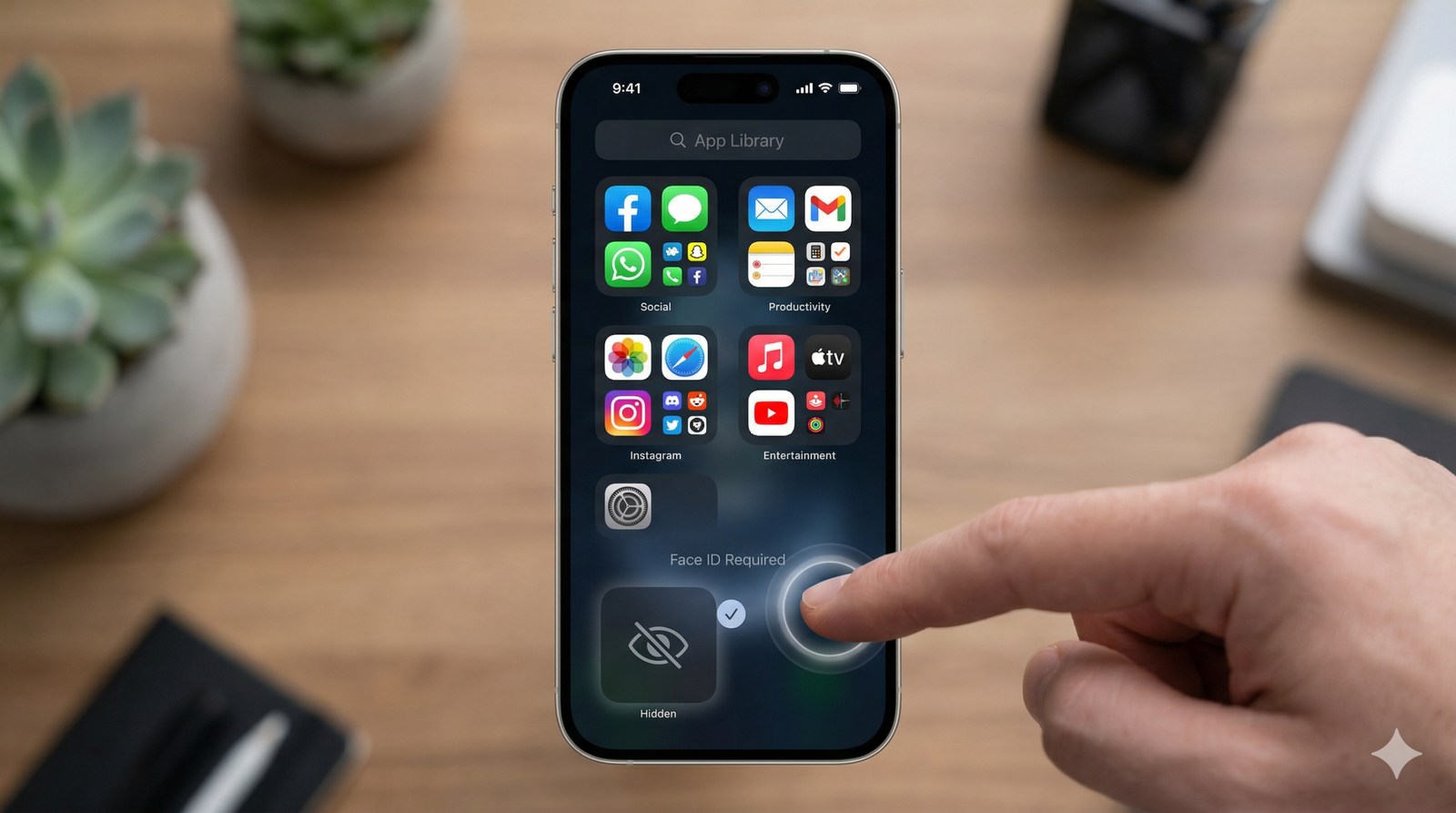
With the release of iOS 18, Apple introduced a much-requested privacy feature: the ability to hide and lock apps behind Face ID. These apps don’t just leave the home screen; they are scrubbed from search and notifications too.
Accessing the Locked Folder
To find these ultra-private apps:
- Go to the App Library (swipe all the way left).
- Scroll down to the very bottom.
- Tap the folder labeled Hidden.
- Authenticate using Face ID, Touch ID, or your Passcode.
How to Move Apps Out of the Hidden Folder
If you’ve decided an app no longer needs to be a secret, follow these steps:
- Open the Hidden folder as described above.
- Long-press the app you want to restore.
- Tap Don’t Require Face ID.
- The app will move back to its category in the App Library. You can then drag it back to your Home Screen.
3. Restoring Hidden Home Screen Pages
Sometimes, it’s not just one app that’s missing—it’s an entire page of them. This often happens if you were trying to “clean up” your phone and accidentally hid a whole section.
To unhide an entire page:
- Long-press any empty area on your Home Screen until the apps start to jiggle.
- Tap the dots (the page indicator) at the bottom center of the screen.
- You will see a grid of all your Home Screen pages.
- Look for pages that don’t have a checkmark under them.
- Tap the empty circle to add the checkmark and tap Done.

4. Checking Screen Time Restrictions
If you’ve checked the App Library and the Hidden folder but the app is still MIA, it might be restricted via Screen Time. Parents often use this to hide “distracting” apps, but sometimes we accidentally toggle it ourselves.
How to check your restrictions:
- Open Settings and tap on Screen Time.
- Go to Content & Privacy Restrictions.
- If it’s on, tap Allowed Apps.
- Ensure the toggle next to the missing app (like Safari, Mail, or Camera) is turned green (on).
Expert Tip: If you are looking for a third-party app (like TikTok or a game), check the Content Restrictions > Apps section. If it’s set to “4+” or “9+”, older-rated apps will be completely hidden from the phone.
5. Unhiding Apps from App Store Purchases
Sometimes “unhiding” means finding an app you previously bought or downloaded but deleted and “hid” from your purchase history. This is a bit more technical but very useful if you use Family Sharing.
- Open the App Store and tap your Profile Icon (top right).
- Tap your Apple Account name/email.
- Scroll down and select Hidden Purchases.
- Find the app and tap the cloud icon to redownload it.
According to Apple Support, hiding a purchase doesn’t delete it; it just keeps it from appearing in your “Purchased” list, which is helpful if you don’t want family members seeing every single app you’ve ever tried.
Common Reasons Apps “Disappear”
Understanding why apps hide can help you prevent it in the future. In my view, the “New App” setting is usually the culprit.
- New Downloads Go to Library: Go to Settings > Home Screen & App Library. If “App Library Only” is checked, new apps won’t appear on your home screen.
- Automatic Offloading: If your storage is low, iPhone might “offload” apps. The icon stays, but a small cloud appears next to the name. You’ll need to tap it to redownload.
- Accidental Folders: Honestly, I can’t tell you how many times I’ve found a “missing” app buried on the third page of a folder named “Utilities.”
Apple provides several ways to find and organize apps across your devices. Below are the primary methods and official support links for iPhone, iPad, and Mac.
On iPhone and iPad
If an app isn’t on your Home Screen, it is likely in your App Library or on a hidden page.
- Use Spotlight Search: Swipe down from the middle of the Home Screen (or tap the Search button at the bottom) and type the app’s name.
- Check the App Library: Swipe left past all your Home Screen pages until you reach the App Library. You can browse by category or use the search bar at the top.
- Unhide Home Screen Pages:
- Touch and hold an empty area on your Home Screen.
- Tap the dots near the bottom.
- Tap any unchecked circles to make hidden pages (and the apps on them) visible again.
- Check for Restricted Apps: If you still can’t find it, check Settings > Screen Time > Content & Privacy Restrictions > Allowed Apps to ensure the app hasn’t been disabled.
- Apple’s Official Support Page on Finding Apps
FAQ: Frequently Asked Questions
Why can’t I find the “Hidden” folder in my App Library?
The “Hidden” folder is a feature of iOS 18. If you are running iOS 17 or older, this folder won’t exist. Instead, your apps are likely just in the standard App Library categories or on a hidden page.
Will unhiding an app restore my data?
Yes! “Unhiding” an app is purely a visual change. Whether you move it from the App Library or the Hidden folder, your logins, settings, and data remain exactly as they were.
Can I hide the “Hidden” folder itself?
Currently, no. Apple keeps the “Hidden” folder at the bottom of the App Library. However, the contents are invisible until you provide Face ID, so your privacy is still protected.
What if the app shows “Open” in the App Store but I can’t find it?
This is a classic sign that the app is in a folder or on a hidden page. Swipe down from the middle of the screen to open Spotlight Search, type the app name, and it will often show you the folder name to the right of the icon.
How do I unhide apps on iPhone using Siri?
You can simply say, “Siri, open [App Name].” While this won’t “unhide” the icon onto your home screen, it’s the fastest way to access a hidden app without digging through settings.
Conclusion: Getting Your Apps Back in Sight
Learning how to unhide apps on iPhone is all about knowing where Apple keeps its different “storage” layers. Whether it’s the new iOS 18 Hidden folder, a tucked-away App Library category, or a Screen Time restriction, the apps are almost always still on your device.
In my years of troubleshooting, I’ve found that a quick check of the App Library fixes 90% of these issues. Therefore, don’t panic if your favorite game disappears—it’s likely just a few swipes away.
Did this guide help you find your lost apps? Let me know in the comments below which method worked for you, or if you’ve found a new iOS 18 trick I missed!